
To make your website easier to find on the internet, we have implemented SEO functions in KLARA. SEO stands for Search Engine Optimization. The aim of this function is to optimise your website so that it appears as high as possible in the search results on Google. That means, the better your SEO score, the better potential new customers will find your company, your products or services on the internet.
Here we are providing you with a checklist so you can improve the ranking of your KLARA website in Google.
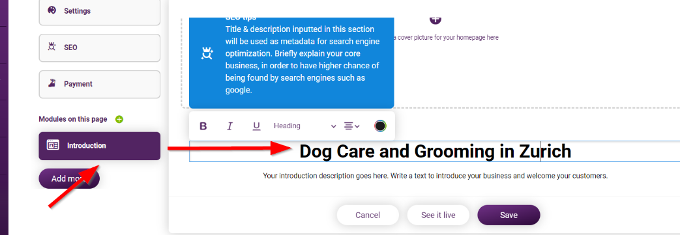
Title
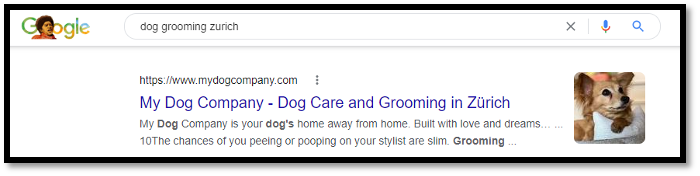
On the Google search results page the title is displayed as blue heading of the individual search results. The title is the most important feature as it is the first thing searched by Google and displayed next to the name of your company.
- Enter the title in the field “Your headline goes here”.
- Use key words: What does your company do, the name of your company or the location.
- Keep it short: Google displays maximum 70 characters, after that the text is “cut off” and replaced by three dots. We recommend using 30 to 65 characters.
Example:
✓ “Dog grooming and hygiene products for the dog in Zurich”
X ”Pet Paradise in the City”
Site description
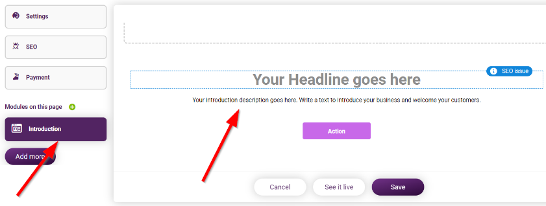
The description is the text below the title in Google search results. Here you can provide more information about your company or your products, what are you selling, your area of expertise, etc. You can enter your text in the field “Your introduction description goes here” (see photo). You have 70 to a maximum of 320 characters at your disposal. Important: Use also key words.
Pictures and documents
As search engines such as Google are text based, it is important to name all pictures and documents in a meaningful way. It should be clear from the name what the image represents or what the document contains.
✓ “Pricelist_Redwines_2022_pdf” X «noname123.pdf”
Online Shop
If you run an online shop or offer online booking, use for each of your products meaningful, informative names and descriptions.
- Article name: This is the first text that Google searches for on your product page.
- Article description: Is displayed as description in the search results, i.e., the black text under the heading.
- Name of the online shop: You can add your online shop as separate menu item in your navigation and provide it with a good and meaningful name. It will be displayed in the URL of your online shop.
Navigation
Navigation is the menu that allows the user to move between the pages of your website. The better your navigation, the better your visitors find what they are looking for and the better is your ranking in Google.
- Use for each of your company’s core offer a separate menu item. For example: Dog salon, dog boutique and dog boarding.
- Use a maximum of 10 menu items.
- The page title in the URL is considered a key word by Google, so think carefully about it. Example: “www.klara.ch/en/accounting-software” Here it is clear what the page contains.
- Do not use umlauts or special characters (ü, ö, ä, é, â, &...), because these are not displayed.
✓mustername.ch/office-equipment X www.mustername.ch/office-equipment&more
Example for a good navigation:

URL
The URL is created based on your website name or the name of your company. You can change the website name in the settings.
- Think carefully about the URL, it should describe your company. The best thing to do is to use the name of your company: www.yourcompany.ch
- Alternatively, you can use important key words.
- Use a hyphen to space words: www.yourcompany-businessconsulting.ch
- Do not use umlauts or special characters here either.
✓ www.hautarzt-keller.ch X www.schönehaut.ch
Additional information
- KLARA automatically creates a sitemap for your website. You can adjust it in the SEO menu.
- KLARA creates a metastructure so that search engines can also search within your website. This consists of meta titles (header 1 to header 6) and meta descriptions in hierarchical order, based on the structure of your website.
- KLARA creates a robots.txt. document. It allows search engines to find the correct URL on your website and to search for content in it. The robots.text file can be opened by adding /robots.txt to the website URL. Using klara.ch as an example, this would be https://klara.ch/robots.txt. This tool helps to check individual URLs whether they are Allowed or Disallowed: https://www.google.com/webmasters/tools/robots-testing-tool
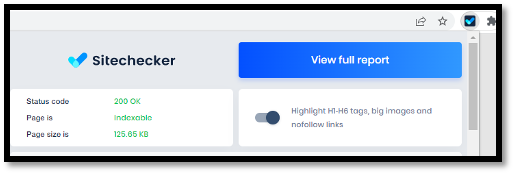
- Advanced option 1: Install the extension “SEO Sitechecker” in Google Chrome to verify the status of your website from a search engine's point of view.
- Advanced option 2: If you do not want certain pages to be found by Google, you can restrict the access to the corresponding pages by adjusting your robots.txt file. You can manage this in your Google Search Engine Console: https://search.google.com/search-console/welcome