
Introduction
In KLARA, you start accounting by clicking “Accounting” in the menu bar on the left. The setup process guides you through all the basic steps—from selecting the legal form and entering the opening balance sheet to configuring VAT settings. This article explains how the setup works and what you need to keep in mind.
Chart of accounts available in KLARA
- The income statement is based on Art. 959b para. 2 of the Swiss Code of Obligations.
- The chart of accounts in KLARA is predefined, which helps you work with workflows even without extensive accounting knowledge. Subaccounts can be created within the accounts using so-called tags, helping you structure your accounting even further.
Legal form and fiscal year
- Select your legal form at the beginning.
- Set the start and end dates of the fiscal year.
- This does not necessarily have to be the calendar year from January through December (for example, June of year X through May of the following year).
- If you are in your first year, you can also have a shortened year or request an extended year (from the tax administration).
- Note: This setting can no longer be changed once you have entered your first transactions.
- Select whether this is your first fiscal year:
- First fiscal year: Only subaccounts can be entered—no prior-year figures.
- Subsequent year: You can enter prior-year figures and upload the closing statements.
- If you initially only use order management, payroll, or the cash register without using accounting, set the fiscal year to begin in the year in which accounting is actually used.
- You can also enter the entire year retroactively if, for example, you are in the middle or at the end of the year. To do this, set the start date retroactively.
VAT liability
-
Default setting: not liable for VAT.
If you are not liable for VAT, you can leave this setting as it is. Click the pencil icon to edit and enter your VAT settings.
-
If you are liable for VAT, select:
You can leave the “valid from” date as configured in the basic setup. You only need to adjust it if your VAT liability changes over the years. To do this, a new row must be entered before the VAT setting is adjusted. Transactions would then have to be corrected or deleted retroactively.
-
Effective method / flat-rate tax rate and agreed vs. collected
Find more information from the tax administration or ask your tax advisor.
-
VAT rates
Here you can define which tax rates should be available for selection, such as the standard rate, reduced rate, or no VAT (0%). These rates can be added or changed at any time. The “valid from” setting does not need to be adjusted separately for this.
- Calculation method (effective or flat-rate tax rate)
- Calculation type (agreed or collected)
- Validity date
-
Important:
These settings can no longer be changed retroactively for transactions once transactions, invoices, or quotes exist.
If there are errors, all affected data must be deleted in order to make changes. - If you become liable for VAT, for example in your second year, do not forget to update this setting so that it is applied to all new transactions in the new year.
-
If you are unsure whether you are liable for VAT, consult a specialist:
Enter the opening balance sheet
The opening balance sheet shows what your company owns at the start date (e.g., bank balances and equipment) and what it owes (e.g., a loan). For a new company in its first fiscal year, this is often only the balance of its business account.” To record the share capital, see the additional article: Record the share capital of a newly founded company
- Enter your opening balances here based on the prior-year closing statements.
- This is not possible for the first fiscal year because no prior-year figures are available.
- You can start with just a few accounts (e.g., bank) and add the rest later.
Functions in the opening balance sheet:
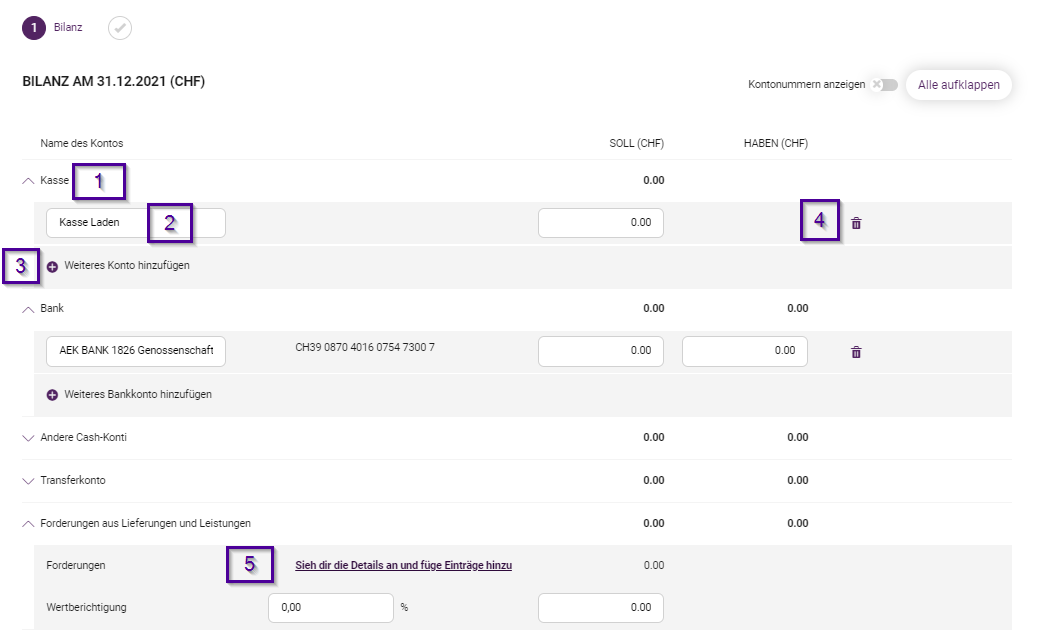
- Expand or collapse account groups
- Add new subaccounts
- Assign names freely
- Delete accounts that are not yet in use
- Open and save detailed views (e.g., the accounts receivable list)
Important:
- Always click “Save” to apply new accounts.
- You can save the balance sheet even if it is not yet balanced.
- Complete it with “Save and close” only when the balance sheet is balanced.
What should you do if the opening balance sheet is not balanced?
- Check your figures against the prior-year closing statements.
- Common errors include transposed digits or missing transactions.
- KLARA automatically assigns the difference to account 2975 “Opening balance sheet not balanced”.
- You can make corrections later—the difference transaction will disappear automatically.
- By the latest at the change of the fiscal year, the opening balance sheet must be balanced.
Structure of the balance sheet in KLARA
- KLARA generally uses the SME chart of accounts.
- Many accounts are mirror accounts:
- Example: “Bank” is displayed as an asset when it has a debit balance and as a liability when it has a credit balance.
- In the opening balance sheet, these accounts are assigned to the usual side (e.g., Bank under assets).
Subsidiary ledgers and the invoicing method
- KLARA automatically maintains accounts receivable and accounts payable lists.
- If you have not previously maintained subsidiary ledgers, enter all open items individually in the opening balance sheet.
- This ensures that the automatic bank reconciliation works correctly.
- KLARA uses the invoicing method:
- Receivables and liabilities owed to government authorities should be recorded correctly at the start.
- When payment is made, it is automatically posted to the corresponding current account.
Subsidiary ledgers: Separate lists for open invoices, such as who still owes you money (accounts receivable) or whom you still owe money (accounts payable).
Invoicing method: This means that an invoice is counted as income or an expense as soon as it is issued—not only when payment is received.
Current account: An ongoing account for a customer, supplier, partner, or private individual.
Conclusion
Correctly setting up accounting in KLARA is essential for accurate, automated bookkeeping. When entering the information, pay particular attention to the fiscal year, VAT settings, and a balanced opening balance sheet. Many settings cannot be changed later, so take enough time for this step.